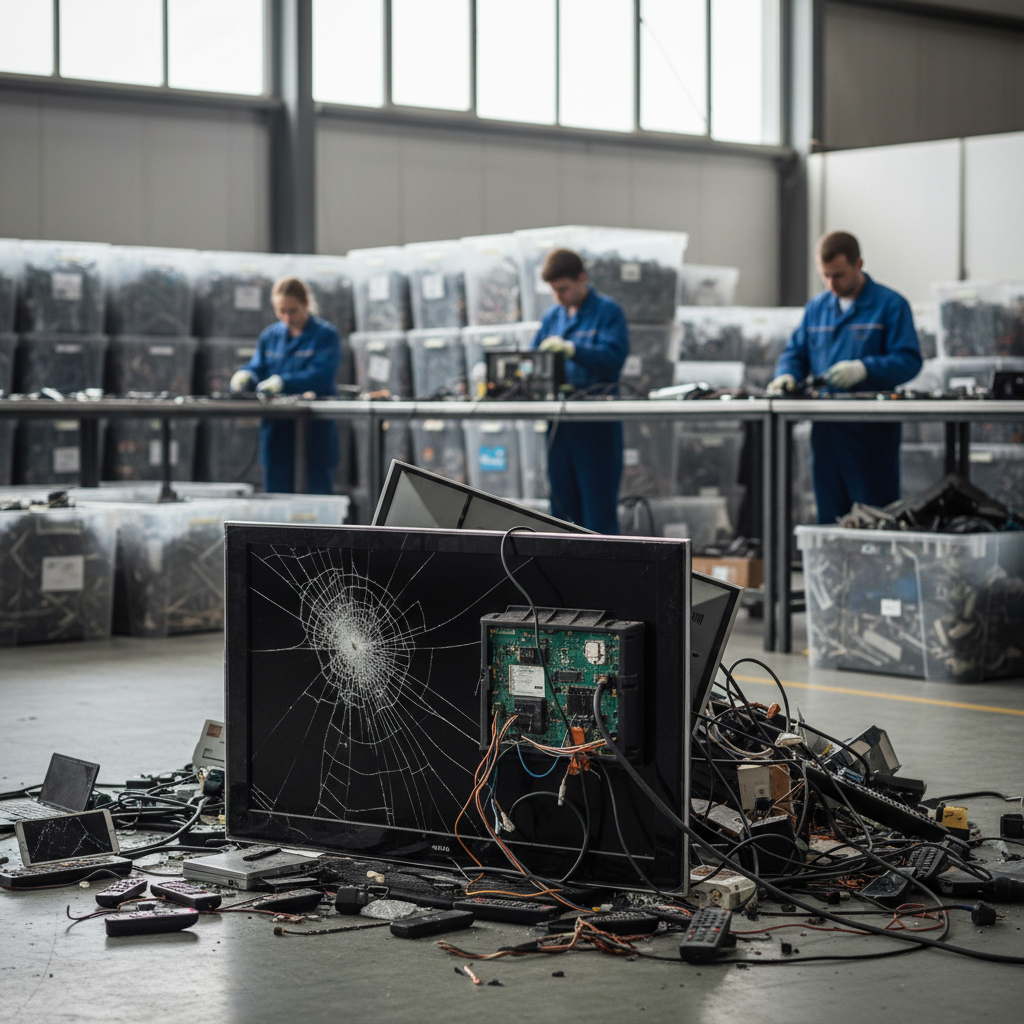
Few things are more frustrating than settling down for a movie night, only for your TV screen to go completely black. The silence or a persistent hum without an image can instantly turn relaxation into a tech headache. But don’t despair! A black TV screen doesn’t always signal the end of your beloved entertainment hub. Many common causes have simple, effective solutions you can try right from your living room. This guide will walk you through diagnosing the problem and applying quick fixes to get your picture back, helping you avoid unnecessary repair costs or the hassle of buying a new TV.
Understanding the Black Screen Phenomenon
When your TV screen goes black, it’s crucial to understand what kind of “black” you’re experiencing. Is the TV completely unresponsive, showing no signs of life, or do you still hear sound even though the picture is gone? These distinctions can point to very different underlying issues and guide your troubleshooting efforts. A TV that has sound but no picture suggests the display panel or its illumination system (like the backlight) might be at fault, while a completely dead TV indicates a power supply or major hardware problem.
Common Culprits Behind a Black TV Screen
Identifying the root cause is the first step towards a fix. Here are the most frequent reasons why your TV might decide to take an unexpected hiatus from showing visuals:
Power Supply and Connections
The simplest explanation is often the correct one. Your TV relies on a steady power supply, and any interruption can lead to a black screen.
- Loose Power Cable: A cable that’s not securely plugged into the TV or the wall outlet can easily cut off power.
- Faulty Outlet or Power Strip: The electrical outlet itself might be dead, or a surge protector/power strip could be malfunctioning.
- Remote Control Batteries: If the TV isn’t turning on at all, a dead remote battery might be preventing it from receiving the “on” signal.
|
Our Picks for the Best 4K TV in 2026
As an Amazon Associate I earn from qualifying purchases.
|
||
| Num | Product | Action |
|---|---|---|
| 1 | Samsung 65-Inch Class Crystal UHD U8000F 4K Smart TV (2025 Model) Endless Free Content, Crystal Processor 4K, MetalStream Design, Knox Security, Alexa Built-in |

|
| 2 | Samsung 55-Inch Class Crystal UHD U8000F 4K Smart TV (2025 Model) Endless Free Content, Crystal Processor 4K, MetalStream Design, Knox Security, Compatible with Alexa |
|
| 3 | TOSHIBA 43" Class C350 Series LED 4K UHD Smart Fire TV, Voice Remote with Alexa, Free & Live TV |
|
| 4 | INSIGNIA 50" Class F50 Series LED 4K UHD Smart Fire TV, Voice Remote with Alexa, Stream Live TV Without Cable |
|
| 5 | Samsung 65-Inch Class QLED Q7F Series Samsung Vision AI Smart TV (2025 Model, 65Q7F) Quantum HDR, Object Tracking Sound Lite, Q4 AI Gen1 Processor, 4K upscaling, Gaming Hub, Alexa Built-in |
|
| 6 | Roku Smart TV – 55-Inch Select Series, 4K HDR TV – Roku TV with Enhanced Voice Remote – Flat Screen LED Television with Wi-Fi for Streaming Live Local News, Sports, Family Entertainment |
|
| 7 | Hisense 43" Class A7 Series (43A7NF, 2025 Model) 4K UHD Smart Fire TV, Voice Remote with Alexa, Wide Color Gamut, HDR10+, Dolby Vision, Dolby Atmos, Game Mode, ALLM, Stream Live TV Without Cable |
|
| 8 | Samsung 55-Inch Class QLED Q7F Series Samsung Vision AI Smart TV (2025 Model, 55Q7F) Quantum HDR, Object Tracking Sound Lite, Q4 AI Gen1 Processor, 4K upscaling, Gaming Hub, Alexa Built-in |
|
| 9 | TCL 55 Inch Class T7 Series | 4K QLED HDR | 55T7, 2025 Model | 120HZ Refresh Rate High Brightness Smart Google TV Dolby Atmos Audio | Voice Remote Alexa Gaming Streaming Television |
|
| 10 | INSIGNIA 43" Class F50 Series LED 4K UHD Smart Fire TV, Voice Remote with Alexa, Stream Live TV Without Cable |
|
Incorrect Input Source and External Devices
Your TV is a hub for multiple devices. If it’s set to the wrong input, you’ll see a black screen because it’s not receiving a signal from the device you intend to watch.
- Wrong Input Selection: Accidentally switching from HDMI 1 to HDMI 2 when your cable box is on HDMI 1 will result in a blank screen.
- Faulty HDMI or AV Cables: Damaged or loose cables connecting your streaming stick, game console, or cable box to the TV can prevent a video signal from reaching the screen.
- External Device Malfunction: The connected device itself (e.g., a Blu-ray player, gaming console, or set-top box) might be off, frozen, or malfunctioning, thus sending no signal to the TV.
Backlight Failure
This is a very common issue, especially with LCD and LED TVs. If your TV has sound but no picture, a failing backlight is often the cause. The TV is working and processing the image, but there’s no illumination behind the screen to make it visible. This can be due to a faulty power supply board or the LED strips themselves burning out.
Software Glitches and Overheating
Like any complex electronic device, smart TVs run on software that can occasionally glitch or freeze.
- Software Bugs: A temporary software error can cause the display to fail, even if the TV’s internal processes continue.
- Overheating: If a TV is placed in an area with poor ventilation or its vents are blocked, it can overheat, leading to a protective shutdown or a black screen.
Power Saving Modes and Sleep Timers
Modern TVs often include features designed to save energy or turn off automatically after a set period.
- Sleep Timer Activation: A sleep timer can be accidentally set, causing the TV to turn off the display after a certain duration.
- Sound-Only Mode: Some TVs have a “sound-only” or “picture off” mode that keeps the audio playing while turning off the screen to save power.
Internal Hardware Malfunctions
When simpler fixes don’t work, the problem might lie deeper within the TV’s internal components.
- T-Con Board Failure: The T-Con (Timing Controller) board is responsible for processing video signals and sending them to the display panel. A fault here often results in no picture despite sound.
- Main Board Failure: The main board acts as the TV’s central nervous system. Issues with it can lead to various display problems, including a black screen.
- Power Supply Board Failure: This board regulates power distribution to all other components, including the backlight. A faulty power supply board can cause a complete lack of power or a black screen with sound.
Quick Fixes: Your First Steps to Troubleshooting
Don’t panic! Many black screen issues can be resolved with a few straightforward troubleshooting steps.
The Universal Power Cycle (Soft Reset)
This is the golden rule of electronics troubleshooting and often resolves temporary software glitches.
- Unplug the TV: Completely disconnect your TV from the wall outlet.
- Wait: Leave it unplugged for at least 1-5 minutes, allowing any residual power to drain. Some experts even recommend up to 30 minutes for a full reset.
- Press Power Button: While unplugged, press and hold the physical power button on the TV (not the remote) for 15-30 seconds.
- Plug Back In: Reconnect the TV to the power outlet.
- Turn On: Power on the TV as usual and check if the picture returns.
Verifying Power Sources and Cables
Ensure your TV is receiving power correctly.
- Check Power Cord: Make sure the power cable is firmly seated in both the TV’s input and the wall outlet.
- Test Outlet: Plug another device into the same wall outlet to confirm it’s working. If you’re using a power strip or surge protector, bypass it by plugging the TV directly into a wall outlet.
- Remote Check: Replace the remote control’s batteries or try turning on the TV using its physical power button.
Checking Input Selection
The wrong input source is a surprisingly common reason for a blank screen.
- Cycle Inputs: Using your TV remote, press the “Input,” “Source,” or “TV/Video” button repeatedly to cycle through all available input sources (HDMI 1, HDMI 2, AV, Component, etc.).
- Verify External Devices: Ensure all connected devices (cable box, gaming console, streaming player) are powered on and functioning correctly.
Inspecting HDMI and Other AV Connections
Loose or faulty cables are another frequent culprit.
- Reseat Cables: Disconnect and then firmly re-connect all HDMI, AV, and component cables running from your external devices to the TV.
- Swap Cables: If possible, try swapping out your current HDMI cable with a known working one. HDMI cables can fail over time, especially generic brands.
Performing the Flashlight Test for Backlight Issues
If you have sound but no picture, this test can help diagnose a backlight problem.
- Turn on TV: Ensure your TV is powered on.
- Shine Flashlight: Take a bright flashlight (from your phone or a dedicated light) and shine it very close to the TV screen at an angle.
- Look for Faint Image: Carefully look for a faint image, shadows, or text on the screen. If you see a shadowy picture, it means the TV’s display panel is working, but the backlight (the illumination behind the screen) has failed. This typically requires professional repair.
Adjusting Power Saving Settings
Accidental activation of these features can lead to a black screen.
- Access Menu (if possible): If your screen briefly flickers or allows you to navigate menus, check your TV’s settings for “Power Saving,” “Eco Mode,” “Sleep Timer,” or “Picture Off” options and disable them.
“A common mistake people make is overlooking the simplest fixes first. Always start by checking your power, cables, and input source before assuming a major hardware failure.” – John Smith, TV Repair Specialist
When to Seek Professional Help
While many black screen issues are resolvable at home, some problems indicate a more serious hardware malfunction that requires expert intervention.
- Persistent Backlight Failure: If the flashlight test confirms a backlight issue, replacing the LED strips or the power supply board that drives them is a complex repair best left to professionals.
- T-Con, Main, or Power Board Failures: Diagnosing and replacing these internal boards requires specialized tools and technical expertise to avoid further damage to your TV.
- Panel Damage: In rare cases, the display panel itself might be damaged, which is usually the most expensive repair and often makes purchasing a new TV a more economical option.
Preventing Future Black Screen Incidents
While you can’t prevent every potential TV issue, a few habits can minimize the risk of a black screen:
- Ensure Proper Ventilation: Give your TV enough space around its vents for airflow to prevent overheating. Avoid placing it in enclosed cabinets without adequate circulation.
- Use Quality Cables: Invest in high-quality HDMI and power cables, and ensure they are not bent, crimped, or under tension.
- Keep Software Updated: Regularly check for and install software updates for your smart TV. These updates often include bug fixes and performance improvements that can prevent glitches.
- Clean Vents Regularly: Dust accumulation can hinder airflow and lead to overheating. Gently clean your TV’s vents periodically with a soft brush or vacuum.
Conclusion
Encountering a black TV screen can be alarming, but as we’ve explored, many common causes have straightforward solutions. From a simple power cycle to checking your input sources and cables, these quick fixes can often bring your picture back to life without needing professional help. Remember to systematically troubleshoot, starting with the easiest checks before moving to more complex diagnostics like the flashlight test. While some issues, particularly internal hardware failures, will necessitate an expert’s touch, understanding these common problems empowers you to address your TV’s black screen effectively. Don’t let a blank display dim your entertainment – with a little patience and these tips, you’ll likely be back to binge-watching in no time.
What’s your go-to troubleshooting step when your TV screen goes black unexpectedly?
Frequently Asked Questions
Why does my TV have sound but no picture?
If your TV has sound but no picture, it often indicates a problem with the display’s illumination. The most common cause is a backlight failure, especially in LCD/LED TVs. It means the TV is processing the video and audio, but the lights behind the screen that make the image visible are not working. Faulty T-Con boards or internal video signal issues can also lead to this symptom.
How long should I unplug my TV for a soft reset?
For an effective soft reset, it’s generally recommended to unplug your TV for at least 1-5 minutes. This duration allows the TV’s internal capacitors to fully discharge, clearing any temporary software glitches or memory issues. Some manufacturers or repair technicians might suggest waiting up to 30 minutes for a more thorough power drain, especially for persistent problems.
Can a bad HDMI cable cause a black screen?
Yes, a faulty or damaged HDMI cable is a very common reason for a black TV screen, especially if you have sound from your TV but no picture. HDMI cables transmit both video and audio signals. If the cable is loose, bent, or internally damaged, it may fail to transmit the video signal, resulting in a blank screen while the audio might still be functional or completely absent.
What is the flashlight test for TV screens?
The flashlight test is a diagnostic technique for TVs with sound but no picture. To perform it, turn on your TV and then shine a bright flashlight very close to the screen at an angle. If you can faintly see images or movement on the screen, it indicates that the TV’s display panel is working but its internal backlight system has failed. This usually requires professional repair.